High CPU or Memory Usage
Why Does Ubiquity Use CPU and Memory?
Like any search application, Ubiquity needs CPU and memory to scan, index, and query your files. When you're actively searching — typing a query, opening results, or updating settings — the app is working and you'll see normal resource usage. This is expected and temporary.
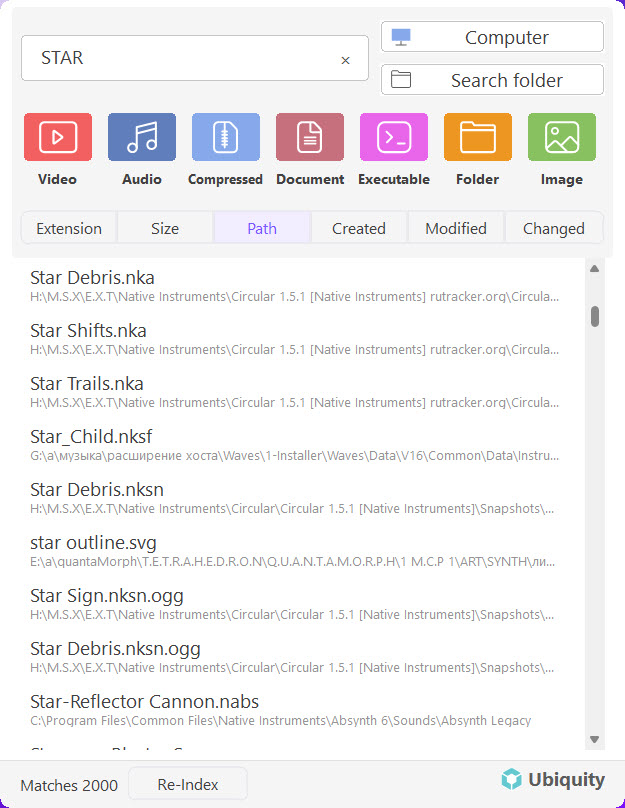
Large File Systems Use More Resources During Indexing
If your file system is very large — hundreds of thousands of files across many drives or network locations — Ubiquity may use more CPU and memory while building or updating the index. This is because the app needs to read file metadata from every file in your indexed locations to build a searchable database.
Key fact: Resource usage scales with the size of your file system. A system with 500,000 files will naturally consume more memory during indexing than one with 5,000 files. This is temporary and only happens while the index is being updated.
The good news is that Ubiquity is designed to be lightweight and efficient. Here's how resource usage works:
Resource Behavior
- Active usage only. CPU and memory are only consumed when you're actively using Ubiquity — searching, opening the app, or when an index update is in progress.
- Automatic sleep. After about 1 minute of inactivity, Ubiquity goes to sleep and stops using CPU and memory almost entirely.
- Background index updates. Even index updates are designed to be brief and efficient. Once the scan is complete, resource usage drops back to idle.
- No idle drain. When you're not using Ubiquity, it won't consume noticeable PC resources. It sits quietly until the next time you need it.
Ubiquity Goes to Sleep After 1 Minute
The most important thing to know is that Ubiquity doesn't run constantly in the background. When you close the search window or stop interacting with the app, it enters a sleep state after approximately 60 seconds. In this state:
- CPU usage drops to near zero. The app stops processing and releases the processor.
- Memory usage decreases. Most resources are freed back to the system.
- No background activity. No scans, no updates, no network requests — nothing runs until you open the search bar again.
In short: If you notice high usage while searching, don't worry — it will drop off within a minute of inactivity. Ubiquity is built to stay out of your way when you don't need it.
What to Do If Usage Seems Too High
If you're concerned about resource usage during active search or indexing, here are a few things you can do:
-
Check the index size.
Open Ubiquity settings and review how many files are indexed. If you've indexed an unexpectedly large location, you can remove it to reduce resource usage. -
Narrow your indexed locations.
Instead of indexing an entire drive, focus on the folders you actually search. Fewer files means faster indexing and lower memory usage. -
Wait for indexing to finish.
If you've just started the app or triggered a reindex, let it finish. Resource usage is highest during this window and will drop quickly once it's done. -
Restart the app.
If something seems off, closing and reopening Ubiquity can clear any stuck processes and restore normal behavior.
Normal vs. Abnormal Usage
Here's a quick guide to what to expect:
When Usage Is Normal
- Spike in CPU while typing a search query — this is the app filtering results in real time.
- Memory usage rises briefly when the app starts up or opens a large result set.
- Higher usage during the first few minutes after launch while the index initializes.
When Something Might Be Wrong
- High CPU usage that persists for more than a few minutes without any user interaction.
- Memory usage that keeps growing over time instead of stabilizing.
- Usage remains high even after the app has been idle for several minutes.
Note: If you see abnormal usage that doesn't go away after waiting a minute or restarting the app, contact our support team for further help.
Next Steps
Learn more about managing Ubiquity's performance:
- Setting Up Your First Search Index — Configure what gets indexed
- Search Not Finding Expected Files — Troubleshoot missing results
- Ubiquity Won't Launch — Fix startup issues