Instant File Search & Filtering
Search at the Speed of Thought
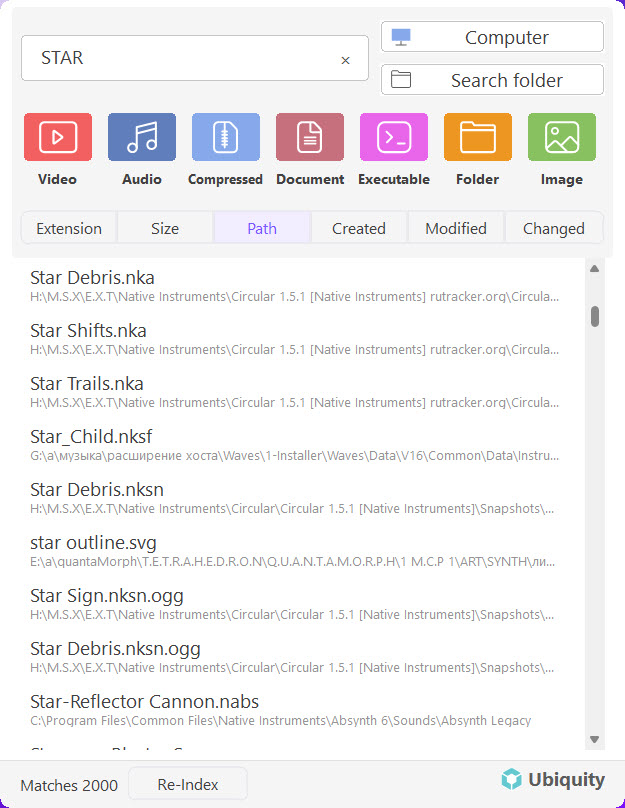
The core of Ubiquity is its instant file search. You type a few characters, and results appear immediately — no waiting, no loading spinners. Because Ubiquity builds a lightweight index of your files ahead of time, every keystroke filters that index in real time.
How It Works
When you open Ubiquity and start typing, here's what happens behind the scenes:
-
You type a query.
Enter any part of a file name — even just two or three letters are enough to narrow things down. -
Ubiquity filters the index.
The search engine instantly matches your input against the pre-built index and narrows the results with every keystroke. -
Results appear in real time.
Matching files show up in the results list immediately. Highlighted text in each result shows exactly why it matched.
Fast by Design: Ubiquity doesn't search your hard drive every time you type. It searches its own index — a compact map of your files — which is why results appear in milliseconds, even on large drives.
Filtering Your Results
As your results populate, Ubiquity keeps them organized so you can quickly find exactly what you're looking for:
- Results update as you type. Each additional character refines the list — type
repoto see all files with "repo" in the name, then addrto narrow it to files containing "repor". - Matched text is highlighted. The part of the file name that matches your query is visually highlighted, so you can see at a glance why a result appeared.
- File types are shown. Each result includes a small icon indicating the file type, helping you distinguish between documents, images, folders, and more.
Navigating Results
Once your results are on screen, there are several ways to navigate and interact with them:
Keyboard Navigation
- ↑ ↓ — Move up and down through the result list.
- Enter — Open the highlighted file in its default application.
- Ctrl + Enter — Open the folder containing the file.
- Esc — Close the search window.
Mouse Actions
- Click a result to open it directly.
- Hover over a result to reveal quick action buttons — Open, Open Folder, and Copy Path.
Searching by Partial Names
You don't need to type the full file name to find what you're looking for. Ubiquity matches partial strings, so a search for art will find files like:
- Artwork_Draft_v3.psd
- Portfolio_**Art**icle.pdf
- **Art**icle_Notes.txt
The more characters you type, the more refined the results become. It's that simple.
Tip: You don't need to worry about capitalization. Searching for report will find Report.docx, REPORT.pdf, and myReport.txt equally.
Quick Access
The whole point of instant search is speed. Here's how to make the most of it:
- Use the keyboard shortcut. Press Ctrl + Space from anywhere on your desktop to pop open the search bar and start typing immediately.
- Keep it short. Two or three characters are usually enough to find what you need.
- Use quick actions. Hover over any result to open it, open its folder, or copy the path — all without leaving the search window.
Next Steps
Now that you know how search and filtering work, here are some other articles to explore:
- Understanding the Interface — A full walkthrough of the Ubiquity layout
- Setting Up Your First Search Index — How Ubiquity builds and maintains its index
- First Launch & Initial Setup — Getting started with Ubiquity