Search Within a Folder
Narrow Your Search to a Specific Location
By default, Ubiquity searches across all your indexed files. But sometimes you know exactly where a file lives — you just can't remember the name. That's where folder-scoped search comes in. You can easily limit your search to a specific folder and its subfolders, so results only come from the area you care about.
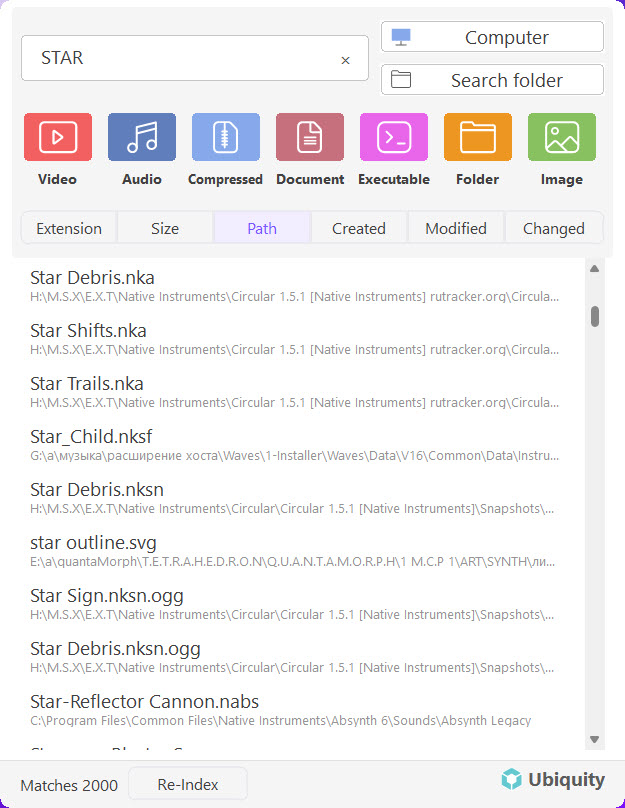
How to Search Within a Folder
Searching within a folder is simple. Just include the folder path in your query:
-
Open Ubiquity.
Press Ctrl + Space to bring up the search window. -
Type the folder path.
Start typing the name of the folder you want to search inside. For example:Downloads,Projects, orDocuments/Work. -
Add your file query.
After the folder path, add a space and type the file name or keyword you're looking for. Ubiquity will only return results from that folder and its subfolders.
Example: Typing Downloads report will find all files with "report" in the name inside your Downloads folder — nothing else.
Why Use Folder Search?
Folder-scoped search is useful in several situations:
- Too many results. When a broad search returns hundreds of matches, narrowing it to a specific folder helps you find the exact file you need.
- Similar file names. If you have files with the same name in different locations, folder search pinpoints the right one.
- Project work. Keep all your project files in one folder? Search just that folder to avoid noise from unrelated results.
- Quick navigation. Even if you're not searching for a specific file, typing a folder name shows you everything inside it.
Supported Path Formats
You can use several ways to specify a folder:
Path Examples
Downloads— searches the Downloads folder.Documents/Work— searches a subfolder within Documents.Desktop/designs— searches the designs folder on your Desktop.Projects/TETRAHEDRON— searches a deeply nested project folder.
Note: You don't need to type the full path from the drive root. Just type the folder name as it appears in your file system — Ubiquity will match it from the indexed locations.
Combining with Regular Search
Folder search works the same way as a normal search — results update as you type, and all the same keyboard shortcuts and quick actions apply. You can open files, open the containing folder, or copy the path, just like any other search result.
The only difference is that the result pool is limited to the folder you specified, making it faster and more focused.
Next Steps
Ready to try it out? Here are some related articles:
- Instant File Search & Filtering — Learn about fast, real-time search
- Understanding the Interface — Full walkthrough of the Ubiquity layout
- Setting Up Your First Search Index — How Ubiquity builds its index